How Digital Creators Can Organize Quotes, Notes and Community Updates Across Devices
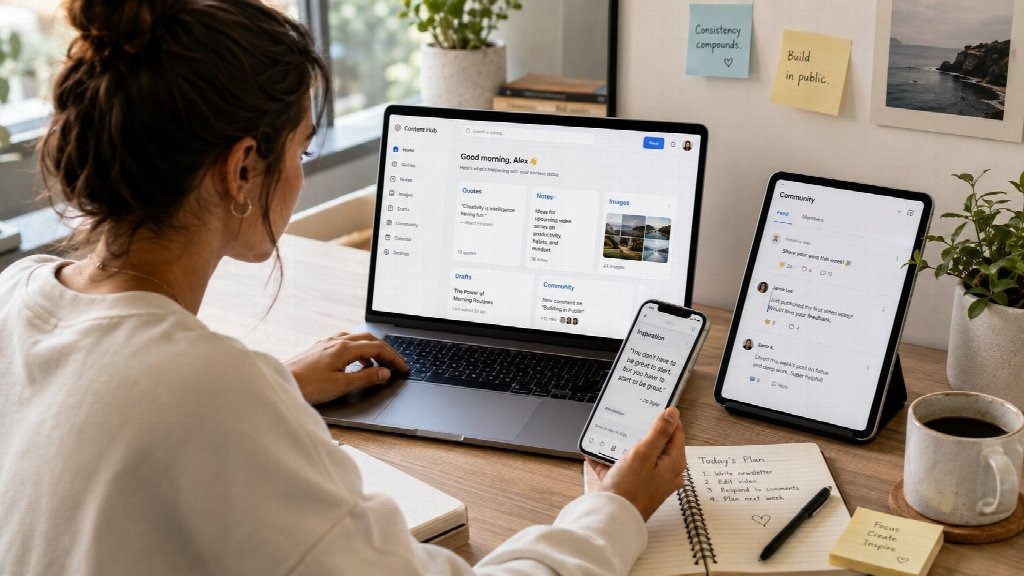
Digital creators rarely work with just one type of content. A typical day may involve collecting quotes, saving screenshots, drafting captions, preparing images, replying to community messages, reviewing comments, and organizing ideas for future posts.
Some of this work happens on a laptop, some on a phone, and some inside messaging, note-taking, or cloud-storage tools. Without a clear system, useful material can quickly become scattered across too many places.
A quote may be stored in a mobile note, an image may remain in a downloads folder, a draft may sit in a document, and an important community update may be buried inside a long conversation.
For creators who publish regularly, the goal should not be to add more apps. A better approach is to create a simple cross-device workflow in which each tool has a clear purpose.
Why Creative Content Becomes Scattered So Quickly
Creators often move between several content formats during the same day. They may collect:
- Inspirational quotes
- Caption ideas
- Screenshots
- Reader comments
- Community announcements
- Draft articles
- Reference images
- Useful links
- Notes for future projects
The problem is that each item may end up in a different location.
Phones are convenient for capturing ideas immediately, but they are not always ideal for organizing large collections. Desktop computers are better suited to editing, sorting, renaming, and archiving, but creators may not have access to them when an idea appears.
Messaging applications add another layer. They are useful for conversations and quick sharing, but valuable information can disappear inside long chat histories.
A more reliable workflow starts by deciding where each type of information should live before the volume becomes difficult to manage.
Use the Desktop for Content Creation and Organization
For long-form production and content management, the desktop should usually become the main workspace.
A larger screen makes it easier to compare drafts, manage folders, edit images, review references, and keep several browser tabs or applications open at the same time.
Desktop environments are particularly useful for creators working with:
- Blog articles
- Quote collections
- Image libraries
- Community calendars
- Long-form captions
- Research notes
- Client files
- Content archives
Messaging tools can also become easier to manage on a computer. Among Chinese-speaking users, Telegram is sometimes informally associated with the “paper plane” nickname because of the paper-plane imagery connected with the service. Users researching desktop access may therefore encounter the term 纸飞机电脑版 when looking for information about using Telegram from a computer.
The important point is not the nickname itself. What matters is how desktop communication fits into a broader creative workflow.
For example, a creator can keep a messaging window open beside a document editor while sorting downloaded images into folders. This is often more efficient than repeatedly moving between a phone and a computer.
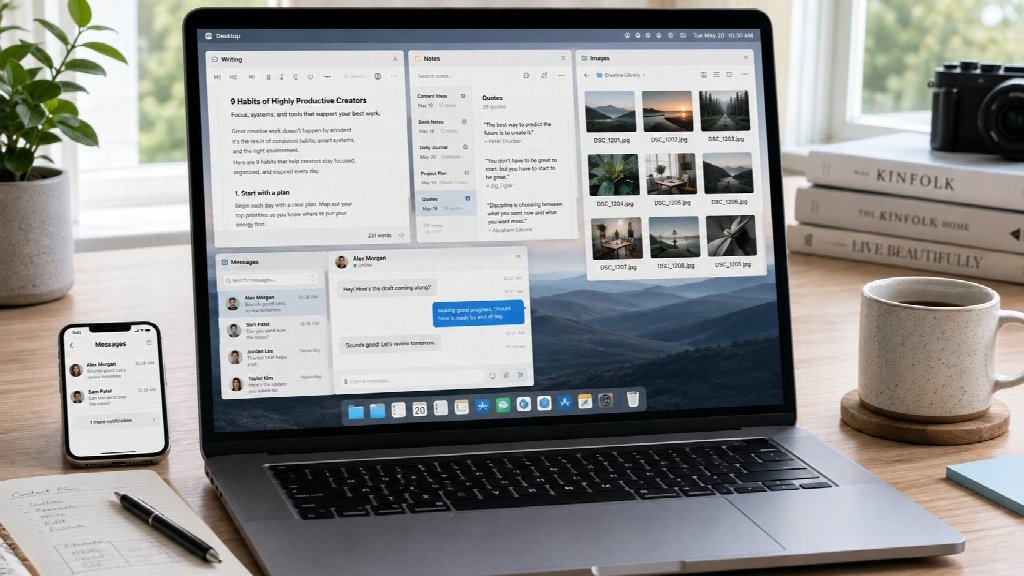
Let Mobile Devices Handle Quick Capture and Updates
Mobile devices remain essential because they are usually the fastest way to capture information when a creator is away from the desk.
A phone is useful for:
- Saving a quote immediately
- Taking a screenshot
- Recording a short note
- Checking community replies
- Responding to urgent messages
- Taking photos
- Saving links for later review
The mistake is trying to complete every production task on the phone.
Long editing sessions, file organization, detailed research, image processing, and large uploads are generally easier to handle on a desktop or laptop.
A practical system is to let the phone handle capture and quick communication while the computer handles organization, editing, and final production.
This division reduces duplicated effort and helps prevent the same piece of content from being processed repeatedly on several devices.
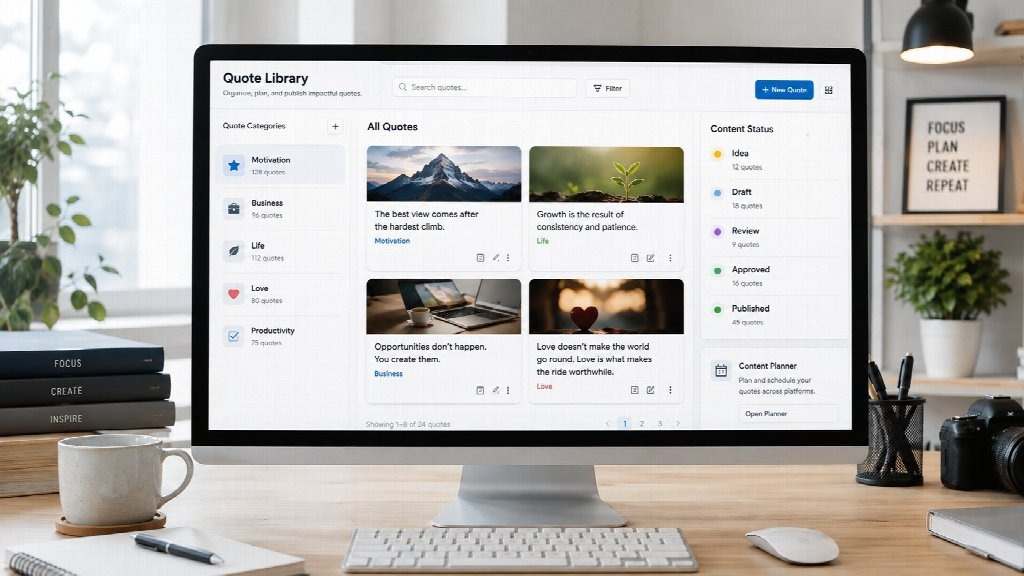
Build a Simple Quote and Idea Library
Creators who regularly collect quotes and ideas should avoid storing everything inside one endless notes file.
A simple category system makes useful material easier to retrieve and reuse later.
Possible categories include:
- Motivation
- Business
- Love
- Friendship
- Life
- Productivity
- Humor
- Leadership
- Seasonal content
- Personal reflections
Content can also be tagged by format, such as:
- Short quote
- Long quote
- Image quote
- Caption idea
- Article idea
- Video prompt
The exact system matters less than consistency. A creator who already knows where a new idea belongs will spend far less time searching for it later.
Separate Publishing From Conversation
One of the easiest ways to create digital clutter is to treat messaging history as permanent storage.
Messaging applications are useful for discussion, feedback, and quick updates. They are not always the best place to keep final versions of content.
A cleaner structure might look like this:
- Website or blog: final articles and published content
- Messaging app: quick discussions, feedback, links, and community updates
- Cloud storage: images, source files, documents, and archives
- Notes system: ideas, quotes, drafts, and future topics
This division makes it much easier to know where to look for something later.
If a final image is approved inside a conversation, it should still be moved to an organized folder rather than remaining only as a chat attachment.
Keep Desktop and Mobile Messaging Consistent
Creators who manage communities often move between devices several times a day.
A quick message may be answered on a phone, while a longer conversation, document review, or large file upload is better handled from a desktop.
For creators using Telegram, a Telegram desktop guide can provide additional context on how desktop use can complement mobile communication, particularly when longer conversations and file handling are involved.
A simple device strategy might look like this:
Desktop
- Longer replies
- File management
- Community moderation
- Document review
- Content planning
- Large uploads
Mobile
- Notifications
- Quick replies
- Capturing ideas
- Checking reactions
- Temporary updates
When each device has a clear role, creators can avoid repeating the same work twice.
Do Not Let Notifications Control the Creative Process
Constant notifications are one of the fastest ways to interrupt focused creative work.
If every group, client message, and community channel generates alerts, everything begins to feel urgent. Over time, creators may either become distracted or start ignoring notifications completely.
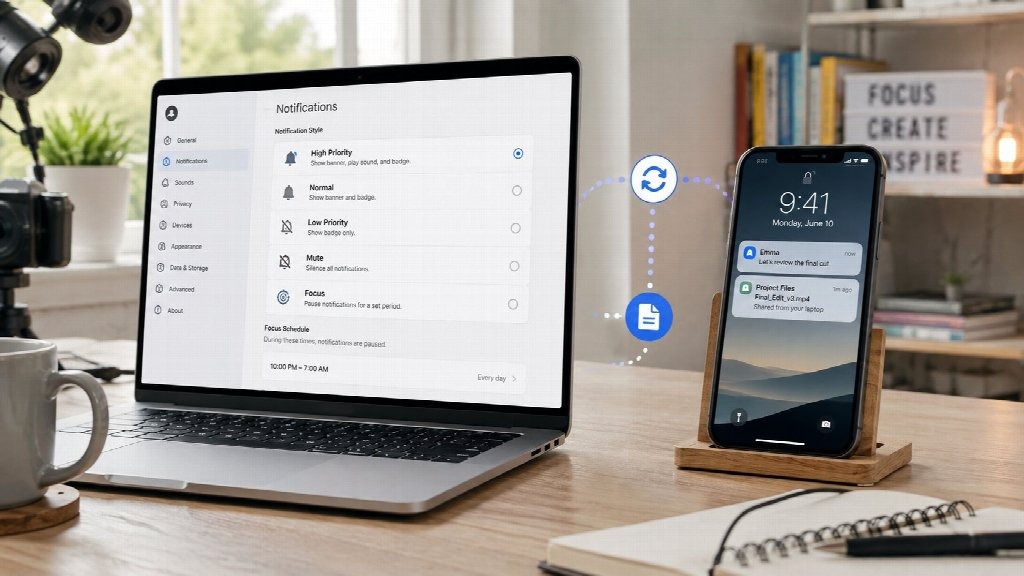
A better approach is to classify conversations by priority.
High Priority
- Client messages
- Time-sensitive project updates
- Important moderation issues
- Urgent publishing problems
Normal Priority
- Routine group discussions
- Collaboration messages
- Editorial feedback
- Non-urgent project updates
Low Priority
- Large public communities
- General-interest channels
- Optional resources
- Non-urgent announcements
Low-priority conversations can usually be checked manually instead of generating real-time alerts.
This allows creators to focus on writing, editing, designing, and planning without unnecessary interruptions.
Keep Shared Files Predictable and Easy to Find
Images and documents are particularly easy to lose when they move between devices and messaging apps.
A creator may receive several versions of the same file with names such as:
image1.jpg
final.jpg
final-new.jpg
final-new-2.jpg
A consistent naming system makes future work much easier.
For example:
motivation-quote-august-01.jpg
business-quote-carousel-v2.jpg
community-update-final.docx
Folders can then be organized by:
- Month
- Project
- Content category
- Client
- Publication status
The system does not need to be complicated. It only needs to be predictable enough that files can be found without searching through several apps.
Create a Simple Content Status System
Creators who publish frequently can also benefit from assigning a clear status to every piece of content.
A basic workflow may include:
- Idea: the concept has been captured but not developed
- Draft: writing or design is in progress
- Review: the content is ready for feedback
- Approved: the final version is ready
- Scheduled: a publication date has been assigned
- Published: the content is live
This structure works for solo creators as well as small teams.
It also prevents unfinished ideas from becoming mixed with approved content and makes planning future posts much easier.
Review and Archive Content Regularly
Digital organization is not a one-time project. Even a good system gradually becomes cluttered if it is never reviewed.
A short weekly or monthly cleanup can include:
- Deleting duplicate files
- Archiving published projects
- Moving useful quotes into the correct categories
- Removing outdated screenshots
- Saving important links outside messaging history
- Renaming unclear files
- Reviewing unfinished drafts
Regular maintenance prevents small organizational problems from becoming larger ones.
A Better Creative Workflow Requires Fewer Decisions
The most effective content system is not necessarily the one with the largest number of tools.
Creators work more efficiently when they already know where a new idea should be saved, where final files belong, which device should be used for a particular task, and which messages deserve immediate attention.
Desktop computers are well suited to production, editing, and organization. Phones are better for quick capture and short updates. Messaging tools are useful for communication, while permanent content should be stored in more structured locations.
Once those roles are clear, quotes, notes, screenshots, drafts, images, and community updates become much easier to manage.
A good digital workflow does not reduce creativity. It removes the unnecessary searching, switching, duplication, and interruption that can get in the way of producing better work consistently.
Mircari Quotes And Sayings
 Why Settle for Boring? Building Features That Make Life More Fun
 Best Indoor Seeds: High-Yield Indoor Strains for Every Grower
 Modern Loneliness and the Rise of Paid Companionship Services
 The Comfort Routine People Are Turning To This Year
 What It Actually Takes to Restore a High-Pressure System Back to Full Strength
 Syna World Shorts Set – Summer Style Redefined
 8 Top SASE Vendors Offering Comprehensive Network Protection
 The Bulk Argan Oil Distributors Ranked