AOMEI Partition Assistant Review: Simplify Disk Management for Windows 11
How can you access Disk Management in Windows 11?
To keep your computer running smoothly, it is important to manage disk space properly. If you have upgraded to Windows 11, organizing your storage in advance can help improve performance. Disk Management is a built-in Windows tool that lets you create, format, resize, and move partitions easily. But where can you find it, and how can you use it effectively?
There are two simple ways to open Disk Management in Windows 11. The first way is through the Quick Access Menu. Right-click the Start button or press Windows + X, then choose Disk Management from the list. The second way is by using the Run command. Press Windows + R, type diskmgmt.msc, and press Enter to open Disk Management.
Sometimes, Disk Management may not work as expected. You might find that it does not open or shows errors such as “Unable to connect to Virtual Disk Service” or “Disk Management could not start Virtual Disk Service (VDS) on TECHNOYL.” It may also take too long to load or get stuck on “Loading disk configuration.”
If you face any of these problems in Windows 11, do not worry. You can use a dependable alternative such as AOMEI Partition Assistant, which provides more advanced and stable disk management features.
AOMEI Partition Assistant: the reliable disk manager for Windows 11
A powerful and user-friendly Windows disk manager, AOMEI Partition Assistant is compatible with Windows 11, 10, 8, and 7, so you can avoid the issues with Disk Management. Users of all experience levels will find it ideal for disk management because to its comprehensive set of features and intuitive interface. These are some of the best things about this Windows 11 Disk Management tool:
Change between MBR and GPT Data Disks: You can convert MBR to GPT in Windows 10 and 11 without losing any data, so you can use it for different purposes.
Create and Delete Partitions: You can easily make new partitions from current ones or empty space, and you can quickly get rid of partitions that you don’t want.
Easy Format: When you format folders, it’s easy to change them to NTFS, FAT32, or exFAT file systems.
Resize/Move Partitions: You can easily make partitions bigger or smaller, and you can also change where they are located.
Merge Partitions: This feature lets you combine empty space with any partition, making it easier to expand without the need for continuous room.
Clone Disks or Partitions: It can easily move or back up data by cloning disks or partitions, such as moving from HDD to SSD, copying a section to another drive, moving only the operating system to SSD, or replacing a hard drive without reinstalling Windows.
AOMEI Partition Assistant is a powerful disk management tool that goes beyond what Disk Management can do on its own.
How to use the powerful disk manager in Windows 11
Here you will get a detailed guide on how to extend partitions using this disk manager in Windows 11, covering two different scenarios.
Case 1. Extend partition when there is non-contiguous unallocated space
Here we recommend the “Merge Partitions” feature of the AOMEI Partition Assistant for this situation. This function merges two close or continuous unallocated slots into a single partition.
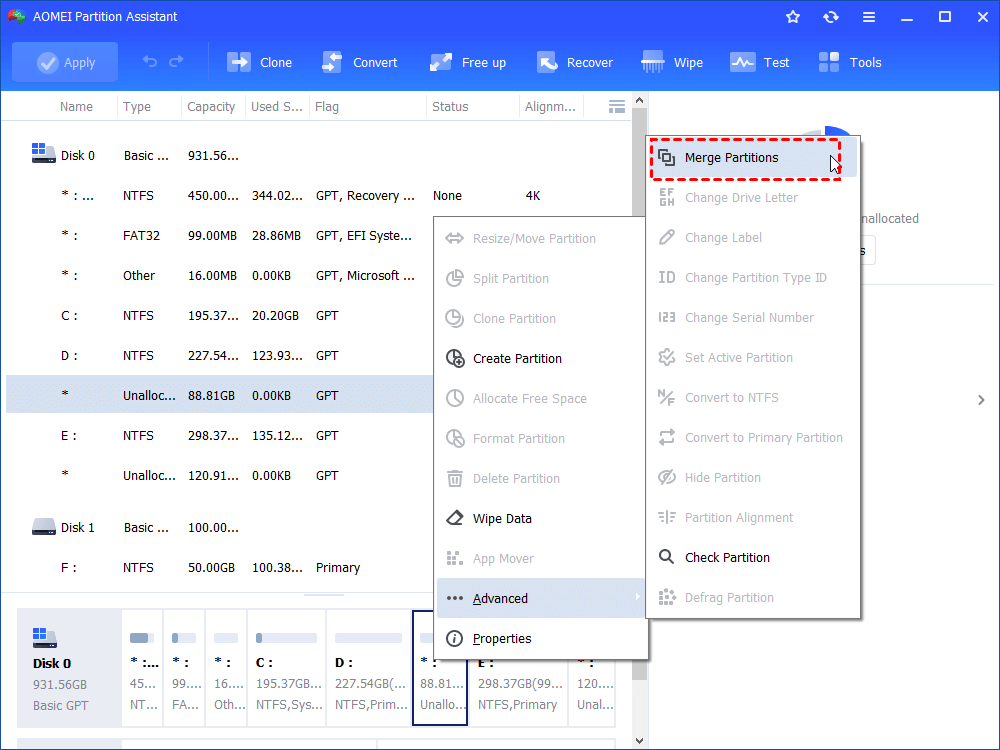
Step 1. Download and launch AOMEI Partition Assistant. Right-click on the partition you need to extend and choose Advanced > Merge Partitions.
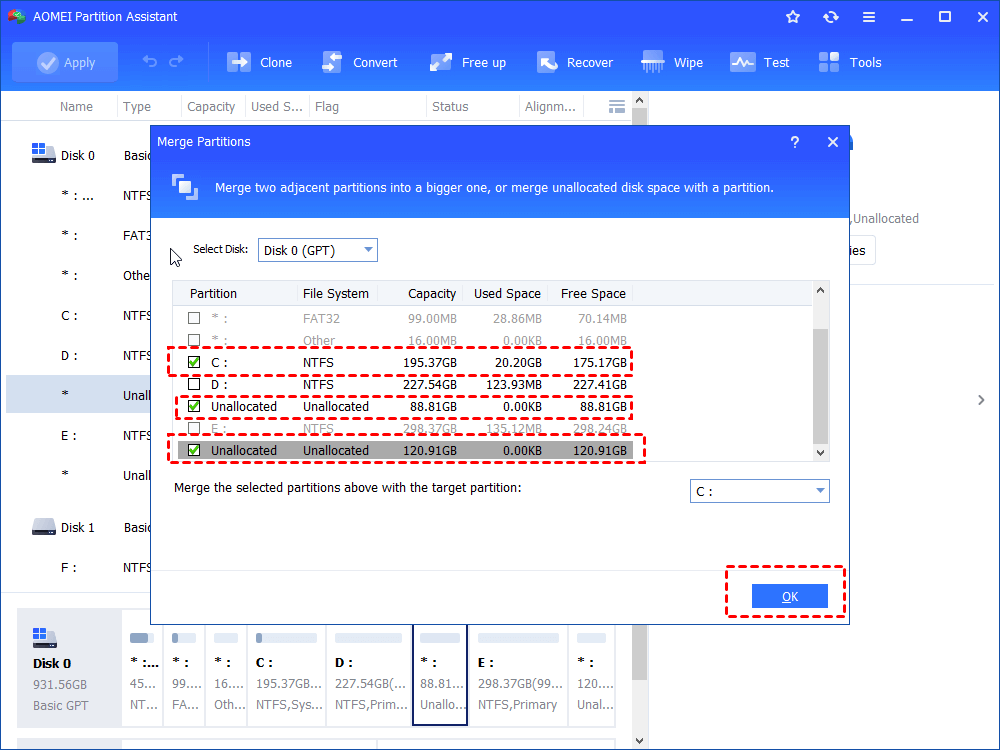
Step 2. Tick the checkbox before the unallocated space and then click OK.
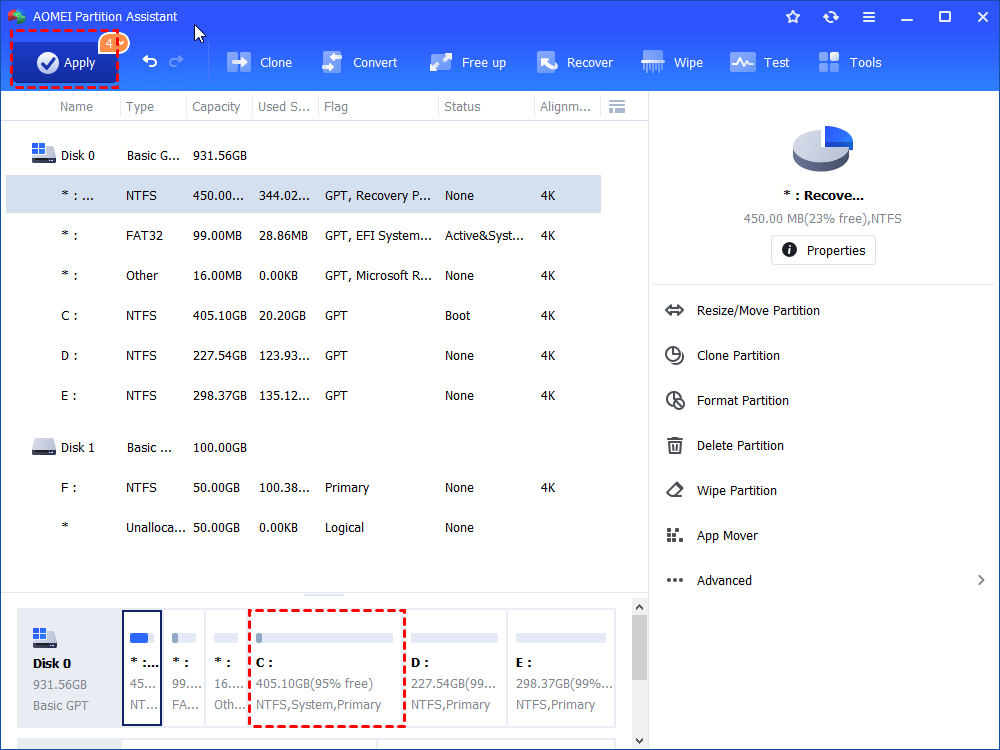
Step 3. Now you can preview the unallocated space that has been added to C drive. To save the change, please click Apply button in the top left corner.
Case 2. Extend partition when there is no unallocated space
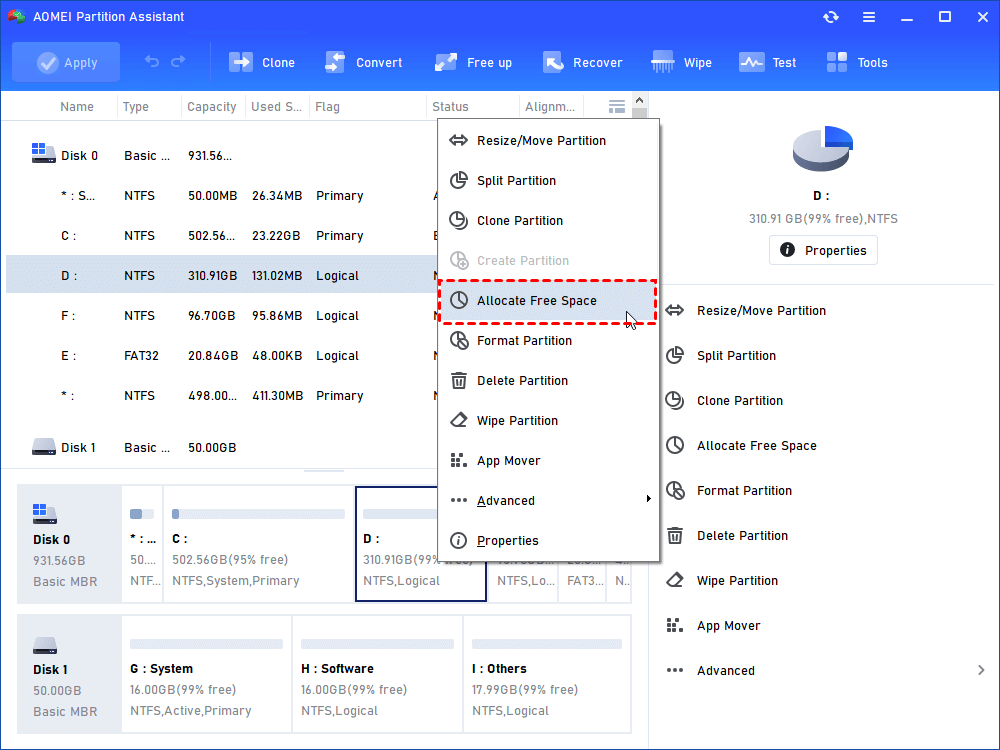
Another option is to use the “Allocate Free Space” function to move the available free space from one partition to another if there is no free space on the disk.
Step 1. Open this software, right-click a partition that has enough space (here is D partition), and then choose Allocate Free Space.
Step 2. Enter the size of free space you would like to add into another partition (here is C drive), and then click OK.
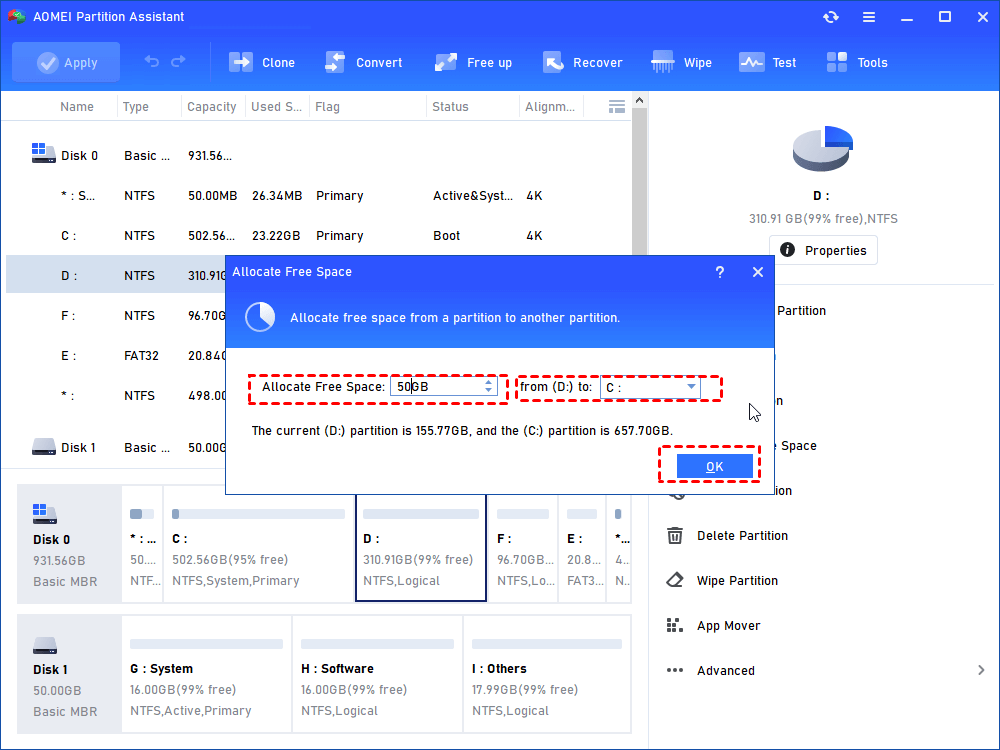
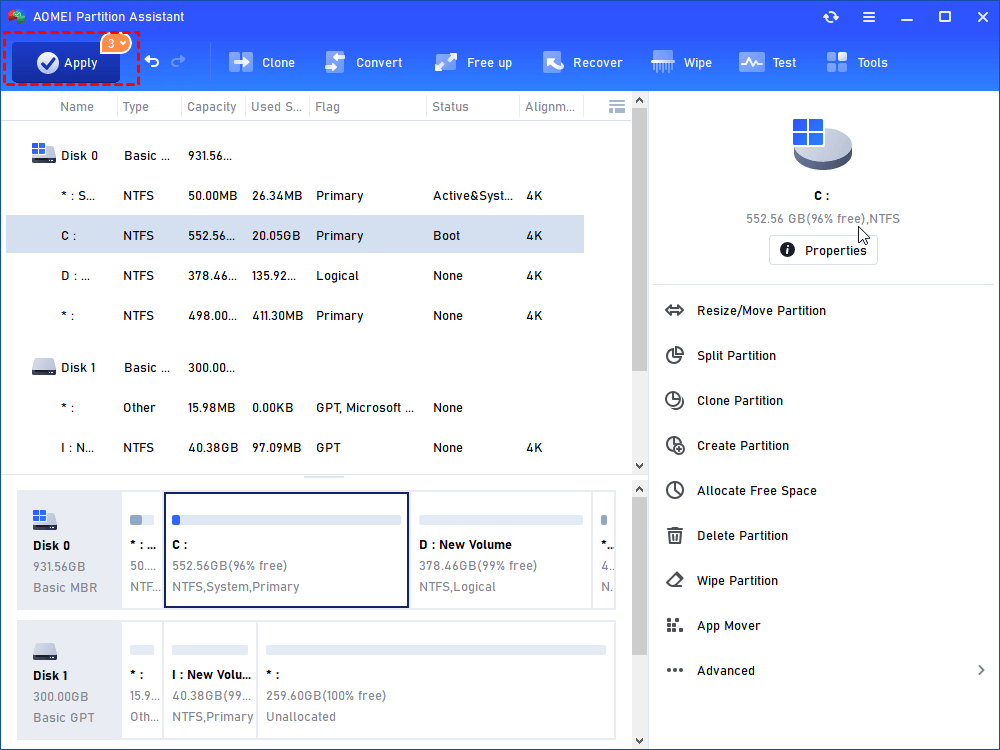
Step 3. Now you can preview that some free space has been allocated to C drive from D partition. Click Apply to save the changes. Then you will extend partition C.
Conclusion
For basic hard drive partitioning, Windows 11 Disk Management works well. However, if you need more advanced features, AOMEI Partition Assistant is a better option. Since 2010, it has helped protect data worldwide and has gained the trust of over 60 million users. Although it offers a wide range of powerful tools, some of the advanced features are only available in the paid version, which might be a small limitation for some users.
Mircari Quotes And Sayings
 Things To Ask Before Opening an Account With A Forex Broker
 Protect Your Eyes with the Best Blue Light Filtering Glasses of 2025
 The Complete Guide to Facebook Ads Accounts in 2025
 Maximize your reach on OnlyFans – effective marketing strategies to grow authentically
 How To Make AI Art
 The Right Way to Introduce a Nervous Dog to Other Pups
 The Best Road Trips in the UK: Must-Visit Routes for Every Traveler
 Why It’s Hard for Koreans to Learn English