U-NEXT Screen Recording Complete Guide: Overcoming Download Limitations with Professional Recording Solutions
Are you frustrated with U-NEXT’s restrictive download policies and looking for ways to enjoy your favorite content offline? Many U-NEXT subscribers face the same dilemma – wanting to watch movies, dramas, and anime during commutes or in areas with poor internet connectivity, only to discover the platform’s numerous download restrictions. Whether you’re dealing with limited storage quotas, device compatibility issues, or content expiration dates, the need for a reliable screen recording solution has never been more apparent.
NEXT’s official download feature, while convenient, comes with significant limitations that often leave users seeking alternative methods. The desire to preserve high-quality content for personal viewing, create backup copies of favorite shows, or simply enjoy uninterrupted entertainment without worrying about internet connectivity drives many users to explore screen recording options. This comprehensive guide will address these concerns and provide you with professional solutions to overcome U-NEXT’s download restrictions.
Restrictions on U-NEXT’s Official Download Function
Although U-NEXT offers an official download function, it does not permit unrestricted saving of videos.When you are unable to download videos, Please be aware of the download function restrictions on the U-NEXT app.
1.Download expiry period
・Downloaded videos expire after a maximum of 48 hours.
・Once expired, online re-authentication is required to view them again.
2. Limited compatible devices
・The download function is exclusively for smartphones and tablets; it cannot be used on PCs.
・Only a maximum of two devices per account can download content simultaneously.
3. Certain titles are unavailable for download
・Some titles, such as rental content or those restricted by rights agreements, cannot be downloaded.
・New release films and popular dramas are particularly likely to be excluded from download eligibility.
4. High-quality settings are restricted
・Download quality is limited to options like ‘High Quality’ or ‘Standard’, preventing saves at the same high resolution as streaming.
・4K video downloads are not supported.
5. Limited flexibility in storage location
・Downloads can only be saved to the dedicated U-NEXT app folder and cannot be moved to SD cards or external hard drives.
・Transferring to other devices is also restricted.
As such, relying solely on official features makes it difficult to freely save and enjoy your favourite videos in high quality.
CleverGet Screen Recorder: The Ultimate Solution for U-NEXT Recording
What is CleverGet video Recorder?
CleverGet video Recorder is a powerful, free streaming video recorder specifically designed to capture online content from various platforms, including U-NEXT. Unlike traditional screen recording software, CleverGet offers advanced features that ensure high-quality recordings while bypassing common restrictions found on streaming platforms. Using this software, you can easily save U-NEXT videos to your PC/u-next ダウンロード pc.
This professional-grade recording tool stands out for its ability to capture DRM-protected content, record at up to 4K resolution, and automatically skip advertisements during the recording process. The software utilizes advanced technology to automatically locate target video frames and audio tracks, ensuring that only relevant content is recorded without capturing irrelevant interface elements or background noise.
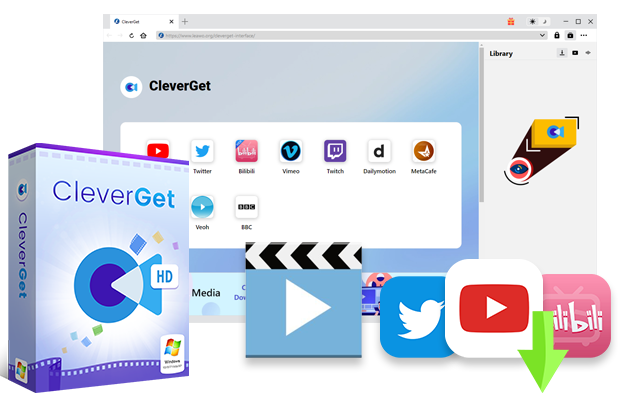
Key Features of CleverGet Screen Recorder:
・High-Quality Recording: Supports recording at up to 4K resolution and 60FPS, maintaining original video quality without compression.
・DRM Content Support: Capable of recording DRM-protected streaming videos, making it ideal for U-NEXT content that typically includes copyright protection.
・Ad-Free Recording: Features an intelligent ad filter (currently in beta) that automatically skips advertisements during recording, providing clean, uninterrupted content.
・Accelerated Recording Speed: Offers up to 5X faster recording speed compared to traditional methods, significantly reducing the time required to capture full-length movies or series.
・Automatic Frame Detection: Intelligently identifies and captures only the video content area, eliminating unwanted interface elements from recordings.
・Multiple Format Support: Saves recordings in popular formats like MP4 and MKV, ensuring compatibility with various media players and devices.
Steps to Screen Record U-NEXT with CleverGet
CleverGet 使い方 Anyone can easily record U-NEXT videos by following the steps below.
Step 1: Install CleverGet
Download CleverGet video Recorder from the official website and install it on your PC.
Step 2: Open U-NEXT in your browser
Open U-NEXT in a browser such as Chrome, Edge, or Firefox, and ensure the video you wish to record is ready to play.
Step 3: Set the recording area
Launch CleverGet and select “Specify Area” in recording mode.
Specifying only the U-NEXT player area ensures efficient recording without capturing unnecessary parts.
Step 4: Start Recording
Click the ‘REC’ button to begin recording.
Once the video has finished playing, press the ‘Stop’ button to end the recording.

Step 5: Save the Video
The recorded video can be saved in any format, such as MP4 or MKV.
This allows you to freely enjoy U-NEXT videos even in offline environments.
Summary
U-NEXT’s official download feature imposes several restrictions, including offline viewing only, time limits, and device limitations. Should you wish to save content beyond these constraints, specialised screen recording software such as CleverGet video Recorder provides an effective solution. This enables you to enjoy your favourite programmes whenever you wish, without worrying about expiry dates.
Mircari Quotes And Sayings
 Blue Wall Paint Trends and Tips: Choosing the Perfect Wall Paint
 How A San Antonio Injury Lawyer Can Help You After An Accident
 Common Car Wreck Injuries
 How to Make Your Cornhole Games More Fun with Themed Bags
 Why PoE 2 Boost is Becoming Essential for Busy Gamers
 Solutions to Common Challenges Faced by Padel USA Newbie Players
 Why It’s Hard for Koreans to Learn English
 The Best Road Trips in the UK: Must-Visit Routes for Every Traveler