How to Move OS to Another Drive Without Reinstalling Windows
Moving your operating system to another drive—especially from an old HDD to a fast SSD—is one of the most effective ways to boost your PC’s performance without buying a new computer. Whether you’re running out of disk space, upgrading to a larger drive, or simply looking for faster boot times, learning how to move OS to another drive can save you hours of reinstallation work and preserve all your apps, settings, and personal data.
Choose the Right OS Migration Tool
Migrating your operating system isn’t the same as copying files from one folder to another. The OS contains boot files, system configurations, hidden partitions, and drivers that must be cloned accurately to ensure the new drive boots properly. That’s why choosing the right OS migration tool is the most important step in the entire process.
When selecting a software solution, make sure it offers the following features:
- System Clone Functionality: The tool must support direct migration of the operating system to another drive without requiring a full disk copy.
- Bootable Drive Support: It should automatically make the new drive bootable after cloning.
- SSD Optimization: If you’re upgrading to an SSD, the software should include SSD alignment to improve read/write performance and extend the drive’s lifespan.
- Support for Different Disk Types: Look for compatibility with MBR/GPT partitions and SATA, NVMe, M.2, or external drives.
- User-Friendly Interface: A clear, step-by-step process helps avoid costly mistakes—especially for beginners.
While there are several cloning tools available, AOMEI Cloner stands out as the best disk cloning software for Windows 11/10/8/7 due to its powerful features, ease of use, and high success rate.
👍Key Benefits:
- One-click System Clone feature for seamless OS migration
- Automatic partition alignment for SSD optimization
- Supports cloning from larger to smaller drives, provided there’s enough space for system files
- Ensures the system is bootable after cloning with no additional setup
How to Move OS to Another Drive Step by Step
Now learn how to move OS to another drive using AOMEI Cloner below. Follow every step in order — I’ve included safety checks so you don’t get stuck.
📝Before you start — quick checklist
- Make a full backup of any irreplaceable files (best practice even though cloning preserves data).
- Ensure the target drive is physically installed and recognized by Windows (Disk Management).
- If the target is a brand-new disk, confirm it’s initialized (GPT for UEFI or MBR for Legacy, matching your current system if possible).
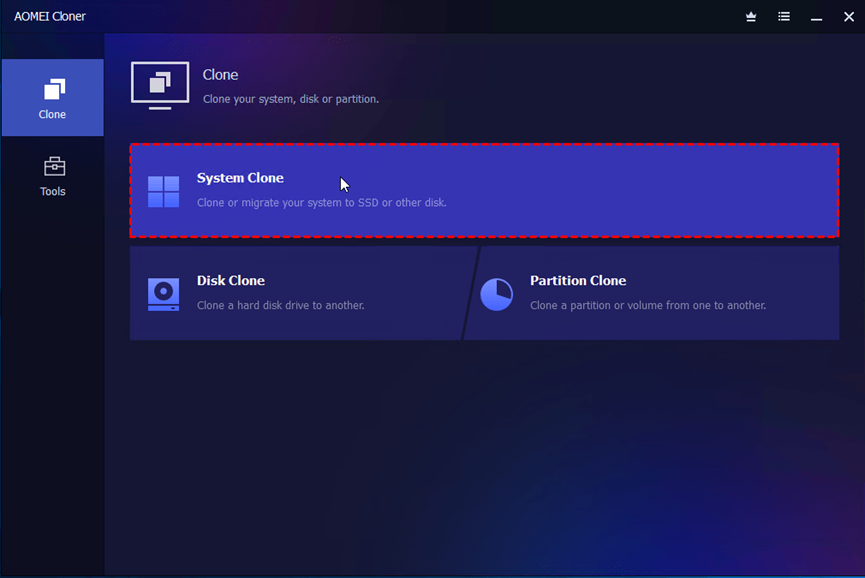
Step 1. Download and install AOMEI Cloner. Run the program and select Clone > System Clone. This mode copies only the OS-related partitions and boot information — ideal for moving the OS without dragging entire data partitions.
Step 2. OS-related partitions are selected by default. Pick the new drive (SSD or HDD) as the target. Be careful — selecting the wrong disk will overwrite it.
Note: If prompted, allow the program to delete existing partitions on the target. That’s normal for a clean migration.
Step 3. Configure cloning options.
- Enable SSD Alignment (if your target is an SSD) — this improves performance and lifespan.
- Choose whether to resize partitions to fit the new disk. If you have several OS-related partitions and you are cloning them to a larger drive, there will be an option called Make full use of disk space and it is checked by default.
Step 4. Click Start Clone to copy system partitions and the bootloader to the new drive. Wait for the process to finish. Do not power off your PC while cloning is in progress.
Step 5. Make the new drive the boot device.
- Shut down the PC after cloning completes.
- Enter BIOS/UEFI setup (usually by pressing Delete, F2, F10, or Esc while the PC powers on).
- Set the new drive as the first boot device. For UEFI systems, select the new drive’s EFI boot entry. For Legacy/MBR systems, set the new disk as the primary boot disk.
- Save and exit BIOS/UEFI. After booting into Windows from the new drive, confirm everything loads normally: desktop, apps, personal files.
Conclusion
Moving your operating system to another drive is one of the smartest upgrades you can make to improve performance and optimize storage. While manual migration methods can be risky and time-consuming, using a professional tool like AOMEI Cloner makes the entire process smooth and safe. After the migration, your PC will boot up faster, run smoother, and be more responsive. Do the upgrade today!
Mircari Quotes And Sayings
 The Complete Guide to Facebook Ads Accounts in 2025
 Protect Your Eyes with the Best Blue Light Filtering Glasses of 2025
 Things To Ask Before Opening an Account With A Forex Broker
 Best Used Ferrari Models You Can Buy in Dubai Right Now
 Discover the Strength and Style of Invictus Luxury Vinyl Flooring
 Could the Wrong Electrical Labels Be Putting Your Business at Risk?
 The Ultimate Guide to 3PL Logistics for Stress-Free Growth
 Everyday Heroes: How Daily Expressions of Thanks Build a Stronger Community